On this page
Before you start
Work out which login the account uses before you change anything. If the app still opens, go to your profile and tap the three-line menu. The line under Manage account says what you are logged in with: your email, your Apple ID or a wallet. On pump.fun, the profile card at the top right shows your username and a short wallet address, such as 6Y1y...BCqD.
Keep your login inbox, your phone and your private key, if you ever exported it, within reach. Do not delete or reinstall the app until that key is on paper. Pump.fun cannot reset a wallet, so the key is your only spare.
Check 1: Sign in with the same method as the first time
A different login opens a different wallet, and that wallet is empty. It is the most common "my funds are gone" scare, and signing out and back in with the original method fixes it.
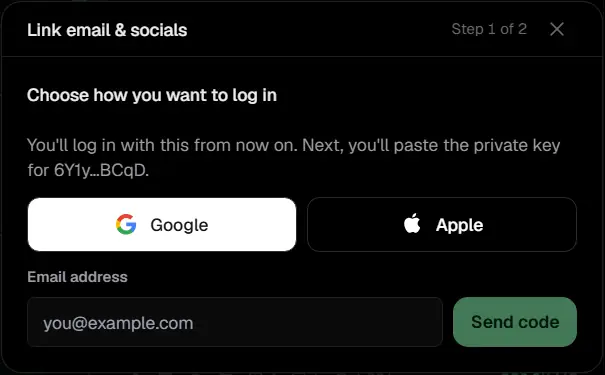
- On pump.fun you sign in with email, Google, Apple or GitHub. Phantom and Solflare still work there until November 30, 2026 (see Check 2).
- In the Pumpfun app you can use email, Apple ID, Google, Login with Wallet, or Add Account for a wallet you imported with its key.
- Apple's Hide My Email. If you picked it when you first signed in with Apple, the account sits behind a relay address. Typing your real email instead may open a second, empty account. Tap the Apple button again.
- Google inside a wallet browser. Google blocks sign-in inside the built-in browser of wallet apps. Open pump.fun in Safari or Chrome, or use email there.
Once you are in, compare the first and last four characters of the address with an old deposit. If they match, you are in the right account.
Check 2: Move a Phantom or Solflare account before November 30
Pump.fun is ending sign-in with external wallets on its website. From November 30, 2026, pump.fun takes only email, Google, Apple or GitHub. An earlier notice named September 25, so the date has moved once already.
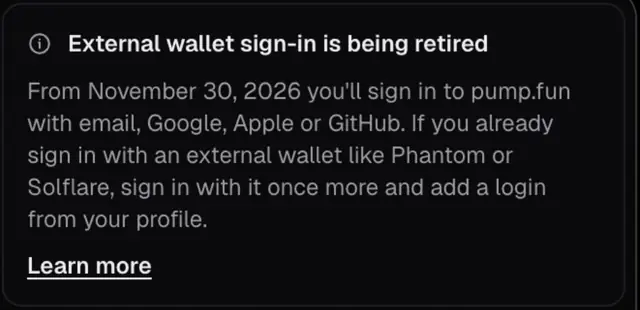
You do this once, while the wallet can still sign you in. Have the private key ready, not the recovery phrase.
- Type pump.fun yourself and sign in with your wallet as usual.
- Open the profile card at the top right and choose Link email & socials.
- In the Create account window, press Continue.
- Pick your wallet under Use the wallet you're signed in as before you touch the email field. An email or social sign-in at that point creates a second, empty account.
- Paste the private key when asked. In Phantom it is under Settings, Manage accounts, the account, then Show private key.
- Add the email, Google or Apple login you will use from now on.
A QR code in the window means your wallet already has a Pumpfun app account. Scan it and add the login in the app.
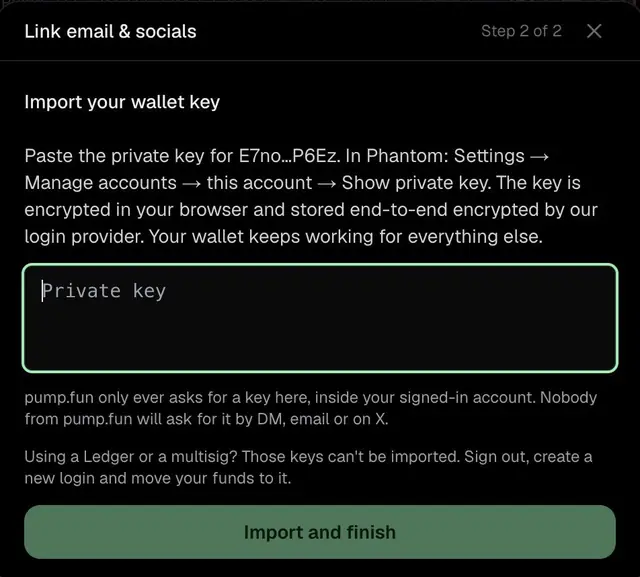
Your address, username, followers and callouts stay the same, and wallet sign-in for that address stops for good. A Ledger or multisig key cannot be imported: sign out, create a new login and send the funds to its wallet. Same route if you would rather not paste a key into a website, though your trade history stays on the old address. What to do before wallet sign-in ends on November 30 covers setting up that new account in the Pumpfun app, from joining with BonusReward to funding it from your old wallet.
Miss the date and you should still get in. Pump.fun says a wallet session still signed in after November 30 gets a screen asking you to add a login. If you are signed out by then, the website will not take the wallet again. The Pumpfun app is not part of the change: import the private key there under Add Account, then choose Link email & socials in Settings. If your app account already uses Login with Wallet or an imported key, add an email or social login to it the same way.
The Create account window is the only place Pump.fun asks for a key. Open it from your own profile, on a pump.fun tab you typed yourself. Drainers copy this screen, so a link that opens it for you is a scam.
Check 3: Get the email code to arrive
The code comes from Pump.fun's login provider, Privy, and usually arrives within a minute.
- Check the address for typos, then give it a full minute before you tap Send code again. Repeated requests can be slowed down.
- Look in spam, promotions and filtered folders. Work email often holds codes back, so a personal address makes a better login.
- Use the newest code and type it straight away. If you asked for several, the older ones may no longer work.
- Still nothing after that? Pump.fun's help center sends problems with an email, Apple or social login to Privy's support team at [email protected].
Never read the code out to anyone: whoever types it gets into your wallet. Pump.fun's terms say it will never ask for one.
Check 4: Sign in on a new phone
A new phone needs only your login. The wallet belongs to your account, not to the device.
- If you still have the old phone, export the key first: profile, three-line menu, Settings, Export Wallet, Continue.
- Install the real Pumpfun app from the App Store or Google Play. The download guide shows how to spot copies.
- Tap Sign in and choose the same method. Email sends a fresh code. Apple ID and Google sign you in directly. Login with Wallet needs the same wallet app on the new phone.
- For an imported wallet, tap Add Account, then Import with Private Key/Recovery Phrase, paste the key and tap Confirm. Use the private key, not the phrase. One phrase can produce several addresses, so the app may open a different wallet.
- Before you deposit anything, check that the short address matches the old one.
Check 5: Read the error on the screen
Two error screens cause most failed sign-ins, and neither means your funds are gone.
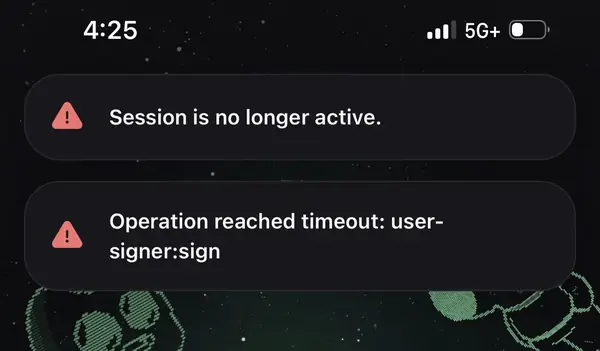
Session is no longer active and Operation reached timeout: user-signer:sign mean the app dropped its signing session, often while Pump.fun itself is having trouble. Check whether pump.fun loads in a browser, close the app fully and sign in again. If it fails everywhere, wait for the fix rather than reinstalling.
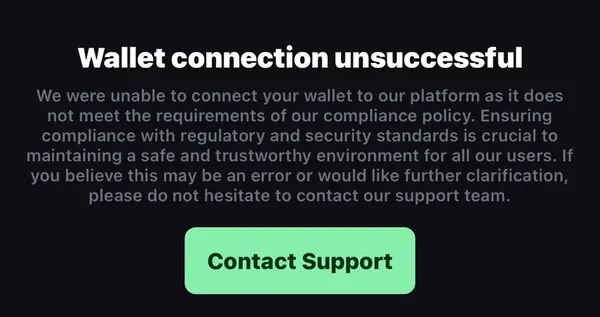
Wallet connection unsuccessful with a line about the compliance policy is a different case. Pump.fun's terms allow it to screen wallets, and this one was flagged. A new login will not help, because the check is on the wallet. Tap Contact Support, ask for a review, and send no more funds to that wallet while you wait. Our support guide lists what to include.
Check 6: Know what a lost login can still recover
What comes back depends on what you still hold. The wallet is self-custodial, and Pump.fun cannot reset a login or move your funds.
| What you still have | What you can do |
|---|---|
| The email, Apple or Google account | Sign in with it. Everything is still there. |
| The private key, but not the login | Import the key with Add Account. The same address and funds come back, and your profile should follow the address. Then link a new login. |
| Neither, but the email account can be recovered | Recover the email, Apple or Google account with its provider first, then sign in. |
| Neither | Nobody can reach the funds, Pump.fun included. |
| A deleted Pump.fun account | Only a key you exported brings the funds back. The same email now opens a new, empty account. |
So the key matters more than the login. Export it on day one and keep it on paper, and protect the login email with two-factor sign-in, since whoever controls that inbox can sign in as you. The wallet guide covers where the export button sits.
Check 7: Make sure the login page is real
Type pump.fun into the address bar or use a bookmark, every time. Search ads and lookalike domains copy the sign-in screen to catch your email code or your key.
- The real site never asks for a recovery phrase, and asks for a private key only inside Link email & socials on your own profile.
- No real page makes you "validate", "sync" or "restore" a wallet before you can log in.
The guide to fake Pump Fun sites shows the usual tricks. Already typed a key or code into a fake page? Move your funds to a new wallet now.
The two-minute checklist
- Sign in with the same method as the first time (the one you chose when you signed up for Pump Fun) and compare the short address.
- Link an email or social login to any Phantom or Solflare account before November 30, 2026.
- Give the email code a minute and check spam before you resend.
- On a new phone, use the same login, or import the private key with Add Account.
- Sign in again after a session error. Contact support after a compliance error.
- Export your private key and keep it on paper.
- Type pump.fun yourself and never share a code or key.