On this page
Before you start
You need a phone, a login you will keep, and pen and paper. The app needs iOS 16.4 or later on an iPhone, or Android 8.0 or later. Pump.fun asks for no ID to open an account, and money can wait until Step 6.
Decide on a referral code now, because it has to go in before your first purchase. Every valid code cuts the platform fee from 0.45% to 0.40% on every trade, whoever owns it. We use BonusReward, which is ours.
Step 1: Install the app and open the join link
Install the Pumpfun app from the App Store or Google Play. Search pump.fun and check that the seller or developer details name Maius Imperium Limited. There is no official APK, and our download guide lists the other checks.
Then, on the same phone, open pump.fun/join/BonusReward. Pump.fun only credits a referral applied in the mobile app, so opening the link on a laptop does nothing for you.
Step 2: Pick how you log in
Open the app and tap Sign in. There are three kinds of login, and the one you pick decides what you can back up later.
| Login | What you get | What you can export |
|---|---|---|
| Email, Apple ID or a social account such as Google | A new wallet made for you through Privy. Email sends a one-time code. | The private key only, no seed phrase |
| Login with Wallet | Your wallet app, such as Phantom, signs you in | Your wallet app's own recovery phrase |
| Add Account, then Import with Private Key/Recovery Phrase | A wallet you already have, inside the app | The key you imported |
For most people, email or Apple ID is the easy choice. The wallet is self-custodial: Pump.fun cannot touch your funds, and it cannot reset access either. Pick an address you will not lose with a job and protect it with two-factor login, because whoever controls that inbox can sign in as you.
Each email address has exactly one wallet. Sign in later with a different email and you land in a new, empty account. If the app ever opens to a $0 balance you did not expect, check the login before you panic, then log out and use the original one.
Importing a wallet? Use the private key rather than the seed phrase. One phrase can produce several addresses, so the app may open a different wallet than you expect. An account imported with a Solana key may also have no EVM wallet; View wallets has a Create EVM wallet button for that.
Step 3: Check your username
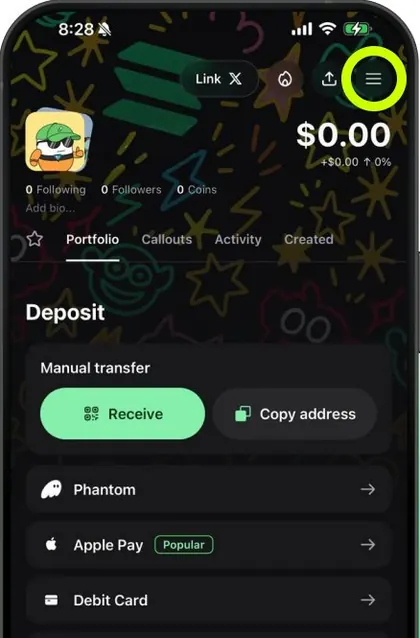
Your username doubles as your referral code. It is also the end of your invite link, pump.fun/join/yourname. New accounts may start with a random name. To change it, open your profile, tap the three-line menu at the top right, then Edit profile. The same menu has Link social media account if you want your X account on your profile.
Step 4: Add the referral code before you buy anything
If the app asks for a referral code during sign-up, type BonusReward. If it does not, open your profile, tap Rewards, then Referrals, and enter it there.
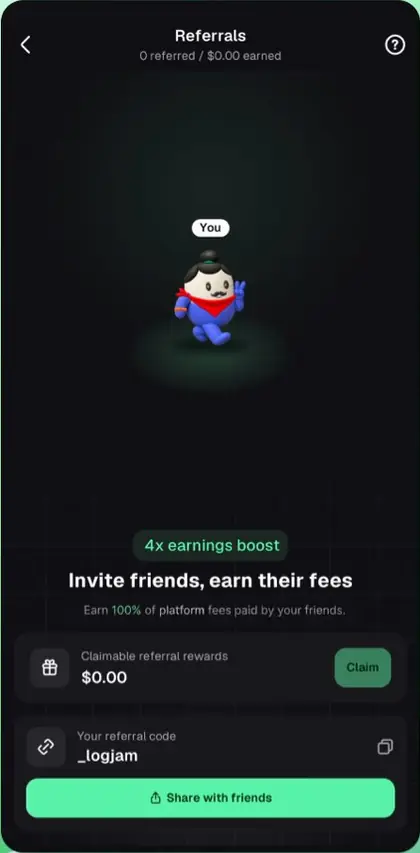
Timing matters more than the code itself. A new account's first card or Apple Pay purchase in the app can be matched up to $50, for you and for the referrer, once you trade on 5 separate UTC days within 10 days. The match is paid in parts after a review, and only if the code was in place before that first purchase. A wallet holds one code at a time, and Pump.fun may treat the link as permanent. Applying a code can also make you follow the referrer. The match rules list every condition.
Check it worked. Start a buy on any coin and read the fee line before you tap Submit. 0.40% means the code is attached. 0.45% means it is not.
Step 5: Back up your private key
Open your profile and tap the three-line menu. The Manage account screen shows how you are logged in at the top, then lists Settings, Withdraw, View wallets and the rest.
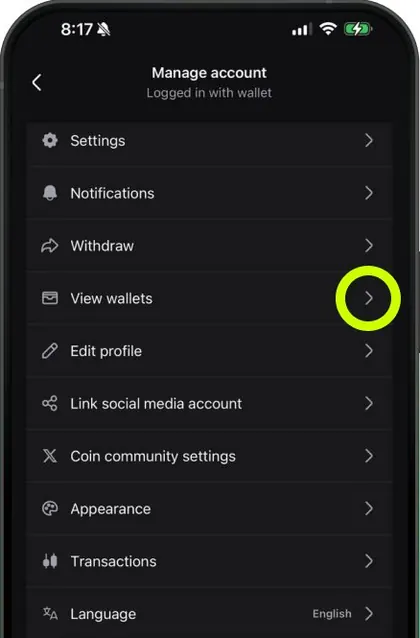
Tap View wallets, then Export private key under your Solana wallet. Some versions put it under Settings, Export Wallet, Continue instead. Write the key on paper and keep it where you would keep a passport. Skip the screenshot, because phone photos sync to cloud backups.
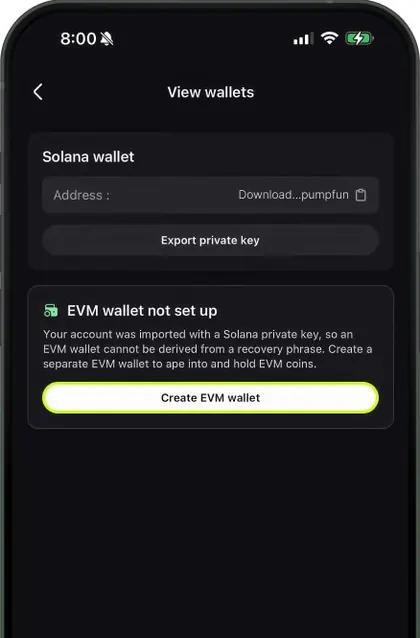
Do it on day one. Email, Apple ID and Google accounts can export a private key but no seed phrase, and if you ever lose that login, the key is your only way back to the funds. Nobody from Pump.fun will ask you for it. Anyone who does is running a scam.
Step 6: Make your first deposit
Tap Deposit. A new account offers Receive and Copy address for sending SOL from an exchange or another wallet, Phantom if it is installed, Apple Pay and Debit Card. Other tokens, such as USDC on another network, come in through the crypto option.
Two traps here. Only a card or Apple Pay purchase inside the app counts toward the match, and crypto sent in from elsewhere does not. And a token sent on another network below the minimum the app shows is not processed and not refunded.
How do you log in again on a new phone?
Use the same method as the first time. Install the app, tap Sign in and choose the same email, Apple ID or Google account; an email login sends a fresh one-time code. A Login with Wallet account asks your wallet app to approve. An imported wallet needs its key again, through Add Account. Deleting the app does not delete the wallet, so a reinstall with the same login brings everything back.
Does Pump Fun require KYC?
No, not to open an account or to trade. In August 2026 Pump.fun advertised Apple Pay buys of up to $1,500 with no KYC. The small print adds that Apple Pay may ask for identity or verification details, and card purchases run through a payment partner that can ask for ID. Pump.fun's terms also allow sanctions and anti-money-laundering screening of wallets, and the deposit match is paid only after a review.
How do you delete a Pump Fun account?
Under Settings in the app. Deletion is final, so export your private key first.
- Open your profile and check that the menu says you are logged in with your email or Apple ID. Login with Wallet accounts have no delete option; you just stop using the wallet.
- Tap the three-line menu, then Settings, then Delete Account.
- Read the warnings and type losemyfunds to confirm.
The account and its data are then gone for good. The coins stay on chain, reachable only with the key you exported. Signing in again with the same email opens a brand-new account, not the old one.
The two-minute checklist
- Install the real app from your phone's store.
- Open pump.fun/join/BonusReward on the phone.
- Sign in with an email or Apple ID you will keep, and note which one.
- Add code BonusReward under Profile, Rewards, Referrals before any purchase.
- Export the private key and store it on paper.
- Deposit with Apple Pay or a card if you want the match.
- Confirm the fee line reads 0.40% on your first trade.