On this page
Before you start
Know what is changing. From November 30, 2026, pump.fun on the web signs you in only with an email, Google, Apple or GitHub account, not with a browser wallet such as Phantom, Solflare or a Ledger. The date was first set for September 25 and then moved. The Pumpfun app already works this way, and one login covers both. Pump.fun says funds are not touched: addresses, positions, callouts, followers and usernames all stay as they are.
So "connecting Phantom" now means one of two jobs. Pick yours first:
- You had a pump.fun account on a Phantom address, with a username, followers, callouts or coins you created. Link that address to an email or social login. You need Phantom's private key for this. Go to step 1.
- You want to trade in the Pumpfun app with money that sits in Phantom. Leave Phantom alone and move funds across. No key leaves Phantom. Go to steps 2 to 4.
If that Phantom account was only ever a trading wallet, take the second route. Your old history stays on the old address either way, and the key never touches a second app.
Step 1: Link an old Phantom account to an email or social login
This keeps your pump.fun address, username and history. You do it once, before November 30, while Phantom can still sign you in. Afterwards, wallet sign-in for that address is switched off for good. Have the private key ready, not the recovery phrase.
- Type pump.fun yourself and sign in with Phantom as usual.
- Open the profile card at the top right and choose Link email & socials.
- In the Create account window, press Continue.
- Pick your Phantom wallet under Use the wallet you're signed in as before you touch the email field. An email or social sign-in at that point creates a second, empty account.
- Paste the private key when asked. In Phantom it is under Settings, Manage accounts, the account, then Show private key.
- Add the email, Google or Apple login you will sign in with from now on.
A QR code in the window means your Phantom wallet already has a Pumpfun app account. Scan it and add the login in the app. Pump.fun says a Phantom session still signed in after November 30 gets a screen asking you to add a login, with the same options. What happens when wallet sign-in ends on November 30 covers the deadline and what keeps working after it.
If you cannot open Link email & socials on the web, do it in the app. Log out, tap Sign in, then Add Account and Import with Private Key/Recovery Phrase. Paste the key and confirm, then open Settings and choose Link email & socials. Use the private key, not the recovery phrase: one phrase can produce several addresses, so a phrase import may open a different wallet from the one you meant.
Pump.fun says the key is encrypted in your browser and held end-to-end encrypted by its login provider, Privy. Even so, after linking, the same key lives in two places. Treat Phantom and your new login as two keys to the same money.
Pump.fun asks for a private key in one place only: the Create account window you open from Link email & socials, inside your signed-in account. A DM, an email, a post or another site asking for it is a scam, however official it looks.
A Ledger, a multisig or any wallet whose key cannot be exported cannot be linked. Sign in with a new login, which gives you a new Pump wallet, and send your funds to it.
Step 2: Send SOL from Phantom into the Pumpfun app
Start in the Pumpfun app. Tap the wallet icon, then Deposit. If Phantom is installed on the same phone, it appears as a payment option: tap it, approve in Phantom, and you land back in the app. No Phantom option? Tap Receive on your profile and copy your Pump wallet address instead.
For that manual route, open Phantom, tap the round + button at the bottom right of the home screen and choose Send. Pick SOL, paste the address, enter the amount and confirm. A Solana transfer costs a fraction of a cent and shows in the app within seconds.
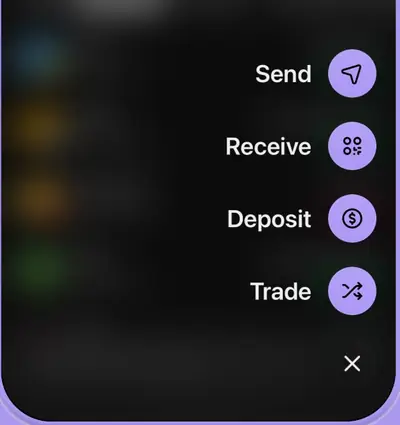
Send SOL or USDC on Solana; how to deposit SOL into Pump Fun shows every screen on the app's side. If your Phantom money sits on Ethereum or Base, either swap it to Solana inside Phantom first, or use the app's deposit address for that network. The app shows a minimum for deposits from other networks, and anything below it is not processed or refunded.
Step 3: Move coins from the Pumpfun app to Phantom
Get your Phantom address first. Tap +, then Receive, choose Solana and copy the address. Deposit, then Receive Crypto, leads to the same place.
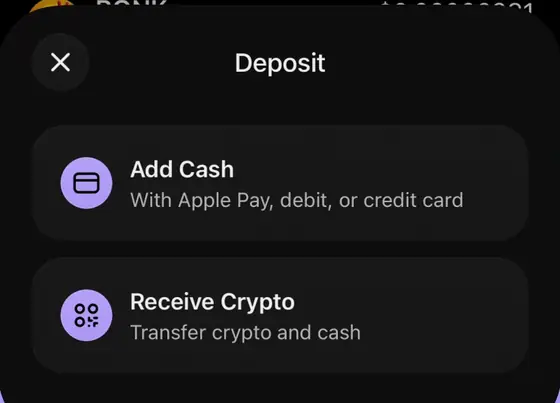
In the Pumpfun app, open your profile, tap the gear icon at the top right, then Withdraw. Choose the coin, paste the Phantom address, enter the amount and tap Send. Keep 0.005 SOL in the Pump wallet: Pump.fun asks for it on top of every withdrawal, whether you send SOL, USDC or a coin.
Check the first and last four characters of the pasted address before you tap Send. A Solana transfer cannot be reversed, by you or by Pump.fun.
Step 4: Make a Pump Fun coin show up in Phantom
A coin sent to your Phantom address normally appears in the token list by itself. Fresh Pump Fun coins are the common exception. Phantom hides tokens that look like spam, and a coin a few hours old with thin trading often fits that description.
- Phantom app: tap Tokens, then Manage at the top right, find the coin and switch it back on.
- Browser extension: open Tokens, use the three-dot menu at the top right and turn the hidden token back on.
Some tokens sit behind a stricter filter that you cannot switch off. The coin is still at your address; Phantom just will not list it. Look the address up on a Solana explorer to confirm it arrived.
The other way to see a Pump wallet's coins in Phantom is to import the whole wallet. In the Pumpfun app, open Settings, tap Export wallet, read the warnings and tap Continue, then copy the key. In Phantom, add a new account and choose Import Private Key. Accounts that sign in with email or a social login can export a private key only, not a recovery phrase. After the import, two apps control the same coins, which doubles the ways to lose them. Do it only if you need it.
Can you buy Pump Fun coins in Phantom?
Yes, in most cases. Paste the coin's contract address into Phantom's search, open the coin, tap Trade, then Buy, and enter an amount. Coins that have graduated to PumpSwap usually get a quote. A coin still on its bonding curve may come back with "No quotes available", and then the Pumpfun app or pump.fun is the place to buy it.
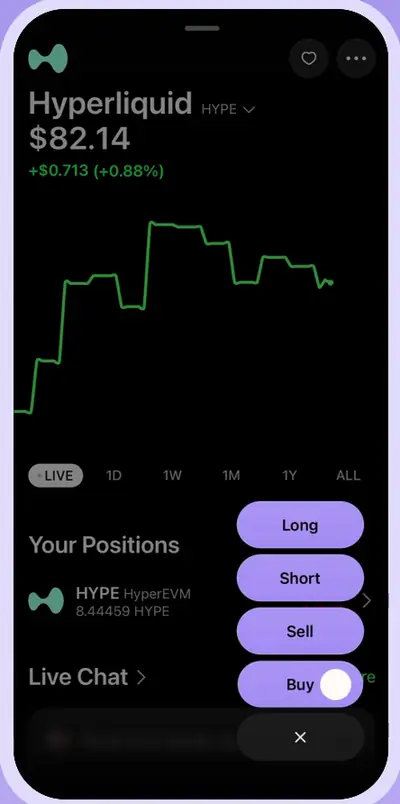
Compare the fees before you choose. Phantom charges its own 0.85% fee on most swaps. The Pumpfun app charges a 0.45% platform fee, or 0.40% if you joined with code BonusReward. The coin's pool fee of 0.30% to 1.25% applies on both. Coins you buy in Phantom also stay in Phantom, so they will not appear in your Pump profile, its positions or its leaderboard. Our Pump Fun vs Phantom comparison sets the two side by side on fees, chains and perps.
If the connection does not work
Try these in order.
- "Connection unsuccessful" when you pick Phantom on pump.fun. Browser-wallet sign-in on pump.fun ends on November 30, 2026, so do not wait for it to stop working. Try again and link the old address while Phantom still gets you in (step 1). If it will not connect, import the key in the app as step 1 describes, or open a new account in the Pumpfun app with BonusReward and move the funds (step 2). A fresh email or social sign-in on the web opens a second, empty account.
- Google sign-in fails inside Phantom's in-app browser. Google sign-in is blocked inside wallet browsers. Use email there, or open pump.fun in Safari or Chrome.
- The key will not import. Make sure you copied the private key and not the recovery phrase, with no spaces at either end. Ledger and multisig wallets have no exportable key; start fresh and send the funds over.
- The app opened an empty wallet after an import. You probably imported a recovery phrase that produced a different address. Log out and import the private key instead.
- No Phantom option under Deposit. The app offers it only when Phantom is installed on the same phone. Use Receive and a manual transfer.
- Coins sent to Phantom do not show. Check the hidden list (step 4), then look up your Phantom address on a Solana explorer to confirm they arrived.
Pump Fun support is in the Pumpfun app and on pump.fun under your profile card. Nobody from Pump.fun will ask for your key there or anywhere else.