On this page
At the time of writing there is no Pump.fun app for Windows or Mac. On a computer you use pump.fun in a browser, or Terminal, Pump.fun's desktop trading platform. Both run in Chrome, Edge, Safari or Firefox, so a PC needs nothing installed.
Before you start
Decide what the computer is for. To trade your existing account on a bigger screen, the website is enough. To scan new coins in columns, track wallets and trade with hotkeys, use Terminal. You can use both, and keep the phone for alerts.
Have your phone with the Pumpfun app installed, and know which login you used there: email, Apple ID or Google. The computer has to use the same one.
Step 1: Set up the account on your phone first
Do the sign-up and the referral code on your phone. Pump.fun only credits a code applied in the mobile app before your first purchase, and the $50 deposit match needs a first card or Apple Pay purchase made in the app.
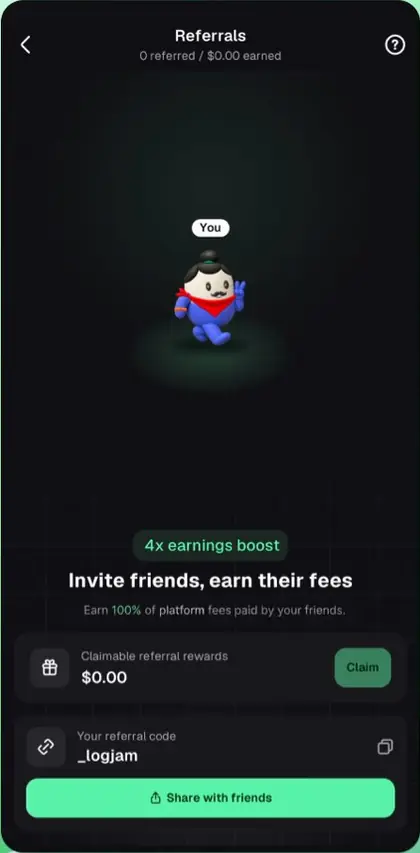
Open your profile, then Rewards, then Referrals, and add a code such as BonusReward. The code is tied to your wallet, not to the device, so once it is attached, website trades from the same account should pay 0.40% too. Check the fee line on your first web trade. The usual mistake is signing up on a laptop first, where the referral may never count.
Step 2: Sign in on pump.fun in your browser
Type pump.fun into the address bar yourself, or use a bookmark. The website signs you in with email, Google, Apple or GitHub, and from November 30, 2026 those are the only options. Pick the same login you use in the app, and you see the same account, balance and positions.
Two things trip people up. A different email opens a different, empty account, because each email has exactly one wallet. And browser wallets such as Phantom or Solflare stop working as a website login on November 30, 2026. If that is how you used to log in, import that wallet into the phone app, link an email under Settings, Link email & socials, and use that login on the web. Inside a wallet's built-in browser, Google sign-in is blocked, so use email there or switch to Chrome or Safari.
Step 3: Pin pump.fun like a desktop app
A browser shortcut is the closest thing to a desktop app. It gives the website its own window and icon, nothing from Pump.fun gets installed, and the site updates itself.
- Chrome: open the three-dot menu, then Cast, save, and share, and choose the option to install the page as an app or create a shortcut.
- Edge: open the menu, then Apps, then Install this site as an app.
- Safari on a Mac: File, then Add to Dock.
What works on the website and what needs the phone?
Trading works on both. The sign-up perks and the social features lean on the phone.
| Task | pump.fun in a browser | Pumpfun phone app |
|---|---|---|
| Log in | Email, Google, Apple or GitHub | Email, Apple ID, Google, Login with Wallet or an imported key |
| Buy and sell coins | Yes | Yes |
| Platform fee | 0.45%, or 0.40% with code BonusReward on your wallet | 0.45%, or 0.40% with code BonusReward |
| Add a referral code | No | Yes, before your first purchase |
| $50 deposit match | No | Yes, first card or Apple Pay purchase |
| Add money | Send SOL or other crypto to your address | Apple Pay, debit card or crypto |
| Create a coin | Yes | Yes |
| Register a Squad | No | Yes |
| Lock-screen alerts | No | Yes |
Squads show how the pieces fit. In the $2,500,000 Squads Competition, squads had to register in the app, but trades on the website and in Terminal counted toward their profit as well.
When is Terminal the better choice?
When you want a trading desk rather than a feed. Terminal, formerly Padre, is Pump.fun's desktop trading platform at trade.padre.gg. Trending, Trenches, Portfolio, Track and Rewards run across the top, and Trenches lists new coins in New, Soon and Migrated columns, each with a quick buy button.
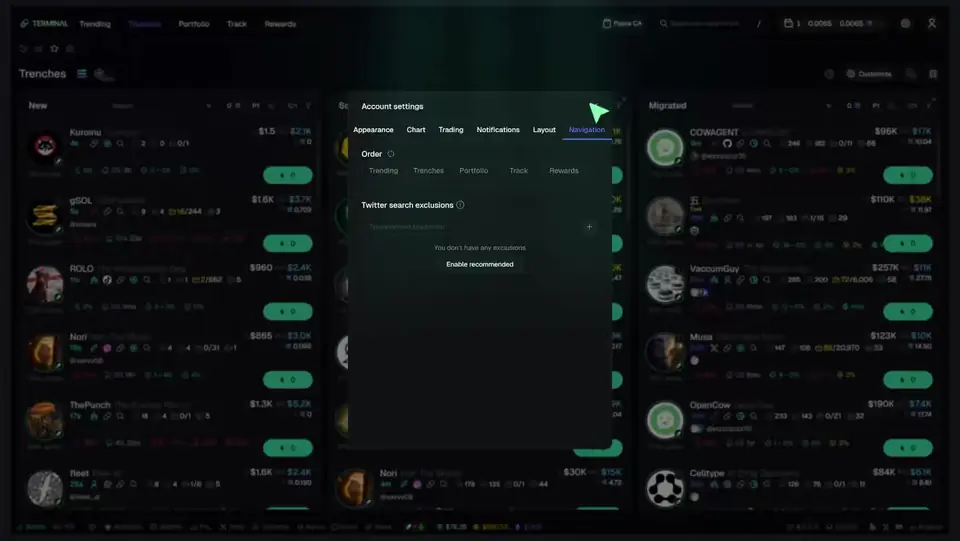
Terminal is a separate product with its own rules. You sign in with an account such as Google, Phantom or MetaMask. It charges its own trading fee, shown in its order panel, and it runs its own referral codes. The app's 0.45% platform fee does not apply there, so BonusReward changes nothing in Terminal. Its settings can link your Pump.fun profile through Login to Pump.fun, and a linked profile lets Terminal show a callout button. The sniper bot page and the Solana trading bot page cover what it does for traders.
How do you add a wallet to Terminal?
Open Portfolio, then Wallets, and choose Create or Import.
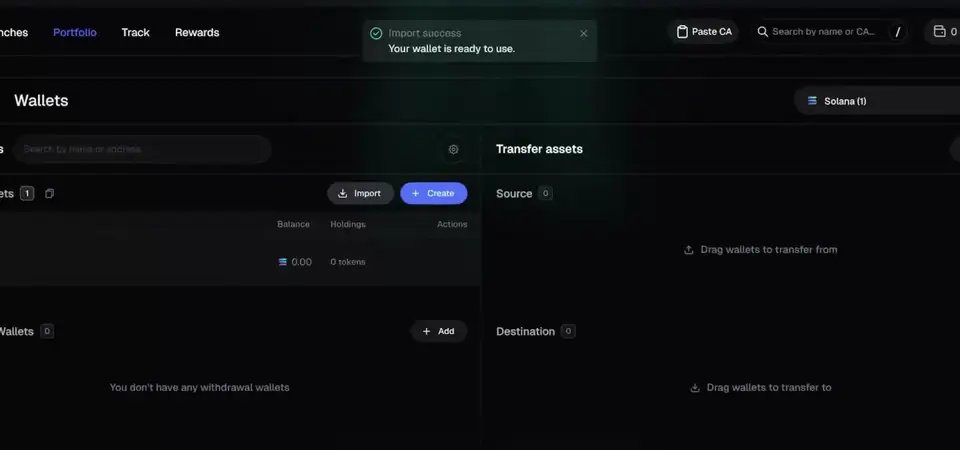
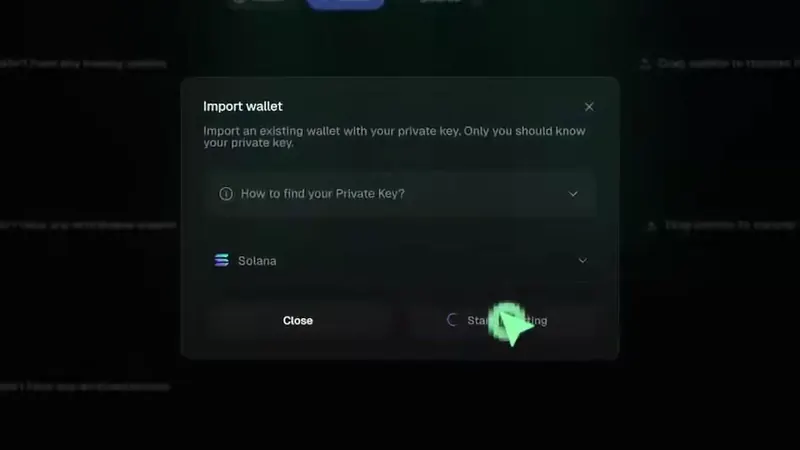
Import asks for a chain and a private key, then Start importing. Terminal says its wallets are non-custodial and that it does not store your key or recovery phrase. Even so, Create is the safer habit: make a fresh Terminal wallet, send it only what you plan to trade, and keep your main key off the computer. The Transfer assets panel on the same page moves funds between your own wallets.
How do you avoid fake Pump Fun desktop downloads?
Treat every download as fake, and check the address with how to spot a fake Pump Fun site or app. Pump.fun publishes no .exe, .dmg or browser extension, so a "Pump Fun desktop" installer, a "PC version" APK or an extension promising faster trades is not Pump.fun's.
- Type pump.fun and trade.padre.gg yourself instead of clicking ads or links in chats. Terminal has said any change to its domain would be announced on its official account first.
- Never paste a private key into a site that asks you to verify, sync or restore a wallet.
- Never let anyone control your computer or share your screen while you are logged in. Pump.fun's terms put that on you, and remote access is a favorite trick of fake support agents.
- Skip Android emulators. Pump.fun does not offer the app that way, and an emulator leaves your wallet on a computer that may be running anything.
If it does not work
- The website shows an empty account. You used a different login. Log out and sign in with the one from the app.
- Phantom will not sign you in. Browser wallet sign-in on the website ends on November 30, 2026. Link an email in the app, then use it on the web.
- Google sign-in fails. You are probably inside a wallet's built-in browser. Open pump.fun in Chrome, Edge or Safari, or use email.
- The fee line on the web says 0.45%. No code is attached to your wallet. Add code BonusReward in the app under Profile, Rewards, Referrals. After a first purchase it may not be accepted.
- Terminal shows a different balance. It is looking at another wallet. Import the right one or fund the Terminal wallet.
- The page hangs on a browser check. Allow JavaScript and cookies for the site and turn off strict privacy extensions.