On this page
Before you start
Update the Pumpfun app first. Alert settings have changed several times in 2026, and an old build can show different screens from the ones below. Then sign in with the same login as always. A different email opens a different account, with no follows and no alerts.
Decide how loud you want the phone to be. Ten traders with every switch on can mean hundreds of pings a day. Start with three to five people and only the alerts you would act on.
Step 1: Follow a trader
Tap Follow next to a trader's name, in the feed or on their profile. The button changes to Following. Profiles open from the feed, the trophy icon for the leaderboard, or search, whose Users tab finds people by name.
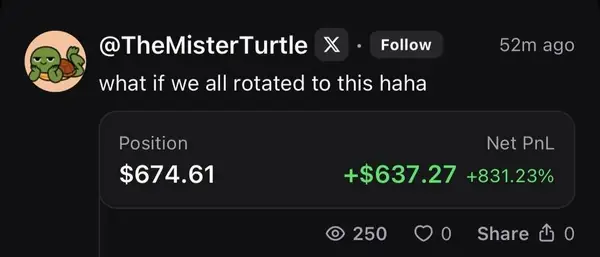
Before you follow, tap View stats on the profile. It shows how the trader's calls have done and, for each callout, what the people who bought after it made after 1 hour and after 4 hours. A caller whose followers are down after 4 hours on most calls is not worth a lock-screen alert. Our callout rewards guide explains those stats.
Squads can be followed too. And if you joined with code BonusReward, the app may already have you following the person behind it.
Step 2: Choose what reaches you in Friend alerts
Friend alerts sets the rules for everyone you follow at once. On the home feed, tap the small arrow next to Friends at the top. A sheet called Friend alerts opens.
- All alerts is the master switch.
- Market cap, Min and Max, drops alerts on coins outside the range. A minimum of $100,000 skips coins that are minutes old.
- Callouts sends new calls. Updates sends changes to calls you already saw. Keep both on.
- Replies, Quotes, Reposts and Likes are chatter. Leave them off unless you follow very few people.
- Positions is the trade alert: it fires when someone you follow changes a position. Fill in Minimum position size in USD, such as 500, or every small top-up wakes you.
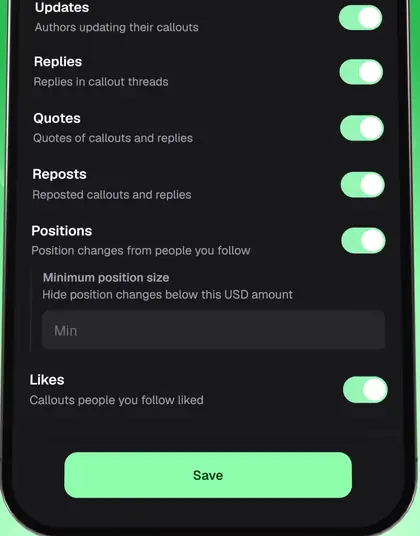
Tap Save at the bottom. Close the sheet without saving and your old settings may stay in place.
A Positions alert arrives after the trade has landed. On a coin worth a few hundred thousand dollars, the price can be well past their entry by the time you look. An alert never buys for you. The closest Pump.fun gets to copying a trader is covered in our copy trading guide.
Step 3: Tune alerts for one person
The bell on a profile sets alerts for that one person. It chooses which of their posts reach you, such as new callouts, updates, replies and reposts, with its own market cap filter. Use it to go louder on the one or two traders you watch closely.
For accounts you want gone, Mute, Block and Report sit in the menu on a profile. The app added them on October 30, 2026.
If you post callouts yourself, you get alerts about them too, such as when a call has multiplied.

Step 4: Set an alert on a coin
Coin alerts need no follow. Open the coin and tap Price alert under the chart; some versions label it Alert. Older versions put a bell at the top of the coin page instead.
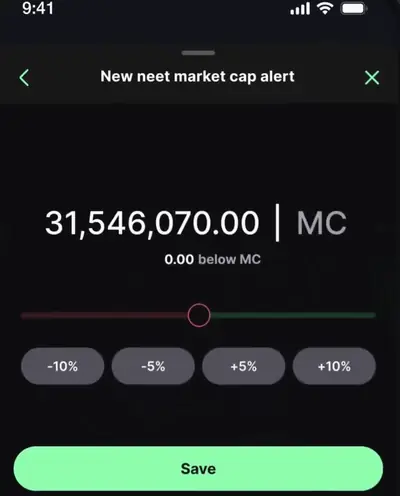
Drag the slider or tap -10%, -5%, +5% or +10%, then Save. In the version pictured, the target is a market cap, which is easier to compare across coins than a price. Saved alerts sit in the coin's notification list, where a Manage tab removes them.
The app can also tell you when a coin hits a new all-time high. That alert carries two buttons.
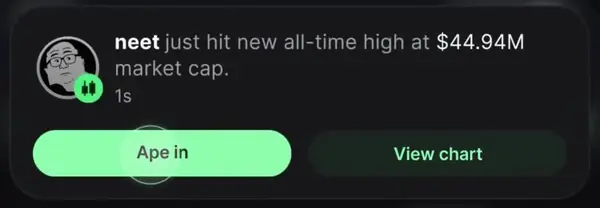
Tap View chart first. A new high is often when early holders sell. Take profit and stop loss orders send their own alert when they fill.
Step 5: Allow notifications on your phone
The phone decides last, so check it even if the app looks right.
| Phone | Where | What to set |
|---|---|---|
| iPhone | Settings, Notifications, the Pumpfun app | Allow Notifications on. Tick Lock Screen, Notification Center and Banners. Turn Sounds on. |
| iPhone | Settings, Notifications, Scheduled Summary | Keep the app out of the summary, or alerts arrive hours late. |
| iPhone | Settings, Focus | Add the app to the allowed apps of each Focus you use while trading. |
| Android | Settings, Apps, the Pumpfun app, Notifications | Allow notifications and switch on every category. |
| Android | Same app screen, Battery | Set to Unrestricted so the system does not hold alerts back. |
| Android | Settings, Do Not Disturb | Add the app as an exception if you trade at night. |
Menu names vary between Android makers. If you tapped Don't allow when the app first asked, only the phone's settings can undo it.
On a computer. Terminal, Pump.fun's desktop platform, has a setting that shows callouts from accounts you follow as pop-ups once your Pump profile is linked to it.
If notifications stop arriving
Work from the phone inward. Most fixes take under a minute.
- Phone permission. A reinstall or a new phone resets it. Check the table above.
- Focus, Do Not Disturb or Scheduled Summary. Any of them hides or delays alerts without telling you.
- Friend alerts. Is All alerts on? Is the market cap range so narrow that nothing fits? Is Minimum position size higher than the trades you expect?
- Saved? Open Friend alerts again and check the switches stuck.
- Still following? Open the profile. If it says Follow, you are on another login or you unfollowed by mistake.
- The trade happened elsewhere. Alerts only cover the wallets on that Pump profile. Trades from other wallets or apps never alert.
- Refresh the app. Update it, then sign out and back in. Reinstall only as a last step, and export your private key first under Settings.