On this page
Before you start
Decide which stage of a coin you want to see. New lists coins a few seconds old, Soon the ones close to filling their bonding curve, and Graduated the ones that just moved to PumpSwap. Movers and Trending show coins that are already running.
Most new coins never get anywhere. In August 2026 about 1 million coins launched on Pump.fun and roughly 18,000 graduated, fewer than 2 in every 100. So set a fixed amount per trade before you open any list. A size you pick while a chart is climbing is almost always too big.
You need the Pumpfun app, signed in. Terminal on a computer is optional; Step 5 covers it.
Step 1: Open the coin lists
Tap the two-coin icon, second from the left in the bottom bar. The lists open with tabs across the top: Trending, Movers, Stocks, Most holders and any others you turn on. The star on the left is your watchlist. On the right are two icons: the lines open the filters for the tab you are on, and the gear opens the display settings.
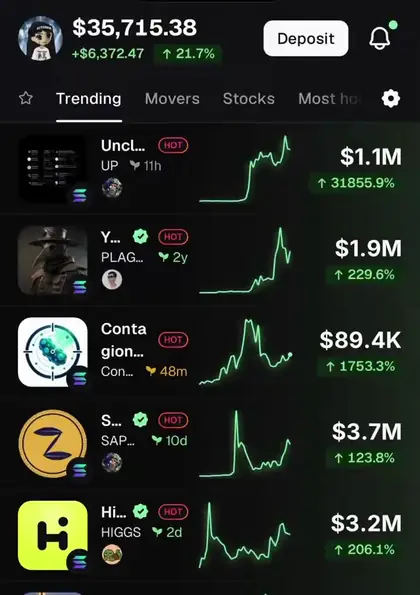
Read each row from left to right: name and ticker, the coin's age after the sprout icon, a mini chart, then the market cap and the change. A small face under the ticker is a trader on the app who holds the coin. A red HOT tag marks fast movers.
The usual mistake is reading the percentage first. A gain of 31,855% on an 11-hour-old coin only means it started near zero. The market cap tells you what the coin is worth now. On Movers, a pill at the top counts the new movers that have arrived. The list does not jump while you read, so tap the pill to load them.
On the website, the home page has the same idea in a Trending panel, with Coins, Stocks and Perps tabs and a window from 1 hour to 24 hours.
Step 2: Choose your feeds
Tap the gear to open Display settings. The Coin feeds section lists every feed. Each has a switch to show or hide it and a handle to drag it into the order you want.
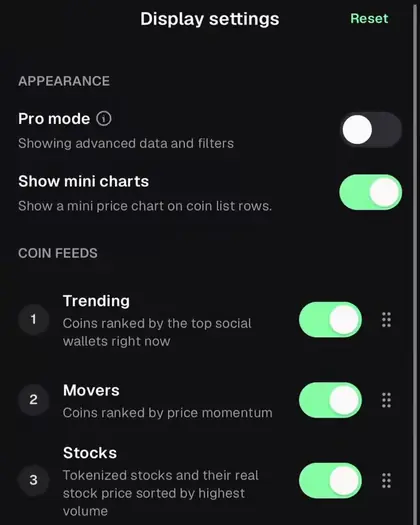
| Feed | What it lists |
|---|---|
| Trending | Coins ranked by the top social wallets right now |
| Movers | Coins ranked by price momentum |
| Most holders | Coins held by people you follow |
| New | Newly created coins, newest first |
| Soon | Coins close to graduating |
| Graduated | Coins that recently graduated, newest first |
| Mayhem | Coins launched in Mayhem mode |
| Stocks | Tokenized stocks, sorted by volume |
New and Soon may be switched off when you first look, so turn them on if you want launches. Drag your main feed into first place. Above the list, Pro mode adds advanced data and filters. Some older builds call the first feed Coins and list Perps here too.
For most people, Soon and Graduated are better places to look than New. A coin near graduation has lived through its first hour and has real buyers. The first minute of a coin's life belongs to bots on paid servers. Our sniper bot guide explains why a phone rarely wins that race.
Step 3: Filter by chain and launchpad
Open the tab you want to filter and tap the lines icon. The sheet is called Edit Graduated Filters, Edit Movers Filters and so on, because every feed keeps its own filters. Start with the Protocols tab.
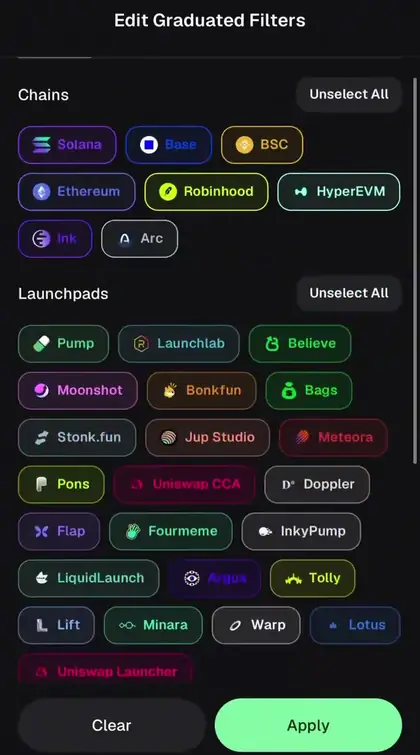
- Under Chains, tap Unselect All, then pick one or two chains you trade.
- Under Launchpads, choose where the coins were made. Pump is Pump.fun itself. The list also holds LaunchLab, Believe, Moonshot, Bonkfun, Bags and many more.
- Tap Apply.
Fewer chains make a calmer list. They also keep your costs in view, because coins on Base, BNB Chain and the other EVM chains add 0.10% to 0.15% per trade on top of the usual fees. At the top of the sheet, Recommended filters applies the filters most people use for that feed. It is a fair starting point if you do not want to build your own.
Step 4: Set floors for market cap and fees
Switch to the Metrics tab. It holds a minimum and a maximum for Market Cap, Total Fees (SOL), 24-hour volume, buy and sell transactions and total transactions. Audit and Socials sit next to it.
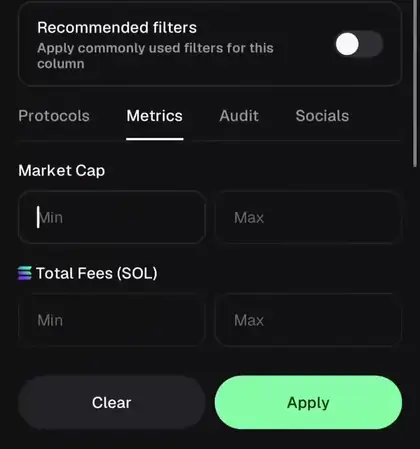
Two filters do most of the work. A minimum market cap of $5,000 to $10,000 hides coins nobody has bought. Total fees is a quick measure of real trading. On the bonding curve each trade pays a 1.25% pool fee, so 5 SOL in fees means somewhere around 300 to 400 SOL of buying and selling. A coin with 0.2 SOL in fees has barely been touched.
Add one filter at a time and watch the list after each one. The Apply button counts your active filters, for example Apply (1). If you stack five filters at once, the list can come up empty without telling you why.
Step 5: Save a stricter set in Terminal
On a computer, open Terminal from the pump.fun menu and go to Trenches. It shows coins in three columns, New, Soon and Migrated, and each column has its own filters.
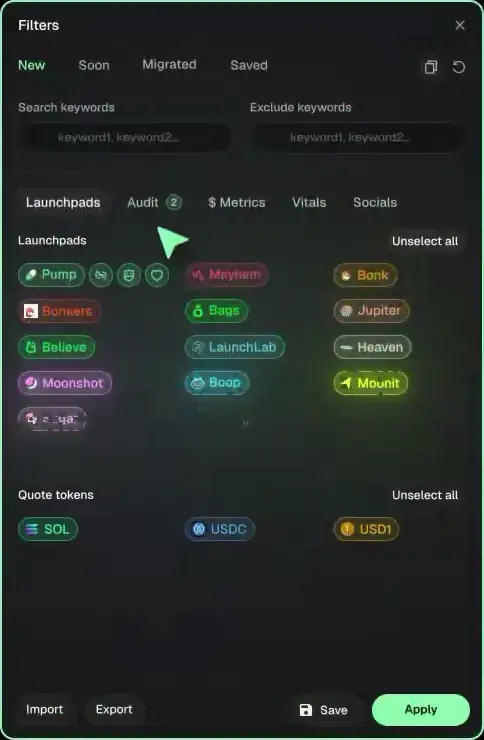
- Pick the column at the top of the dialog: New, Soon or Migrated.
- Type words to follow in Search keywords and words to hide in Exclude keywords.
- Work through Launchpads, Audit, $ Metrics, Vitals and Socials. Audit can require that the creator still holds and that a known bot did not create the coin. It also caps how much the top 10, snipers, bundles and the creator hold.
- Tap Save. The set appears under Saved. The copy icon at the top right applies your changes to all three columns.
- Use Export and Import to move the set to another computer.
A saved set is easy to forget. If a column goes quiet for an hour, check your filters before you blame the market. Terminal also keeps a deployer blacklist of up to 1,000 creators whose new coins never reach your feed. The holder, dev and bundle numbers behind the Audit tab are worth learning before you set limits on them.
How to avoid chasing every new launch
Use a short set of rules you decide before you open the app. Here are the ones we would start with:
- Star first, buy later. Add a coin to the watchlist and look again in 10 minutes. Many launches fade within that window.
- Cap the count. Set a number of new-coin trades per day, such as three, and stop when you reach it.
- Count the fees. With a referral code, a buy and a sell on the bonding curve cost about 3.3% in listed fees. Ten quick round trips with the same $50 cost around $16.50 before the price moves at all.
- Skip copies. When a name trends, dozens of coins with the same ticker launch within minutes. Match the contract address the project posts.
- Check the holders. A coin that passes your filters can still belong to a few wallets. Our rug pull checks take about two minutes.
If you trade memecoins often, the memecoin trading guide covers sizing and exits in more depth.
The five-minute checklist
- Open the coin lists from the two-coin icon.
- In Display settings, switch on the feeds you want and drag your main one to the top.
- On each feed, pick one or two chains and the launchpads you trust.
- Set a minimum market cap and a total fees floor, one filter at a time.
- On a computer, save a stricter set in Terminal's Trenches and export a copy.
- Decide your trade size and daily trade count before you look at a chart.