On this page
Does Pump Fun have a stop loss?
Yes. The Pumpfun app has take profit and stop loss orders on any coin you hold. They reached Solana coins on September 1, 2026, and EVM chains on October 22, 2026, starting with Robinhood Chain, BNB Chain, Base, HyperEVM, Arc and Ink. Pump.fun cofounder Alon Cohen said on November 4, 2026 that almost all of the chains added since then came with limit orders from the start.
The app calls them limit orders. A take profit sells when the market cap reaches your target. A stop loss sells when it falls to your floor. Both run on Pump.fun's servers, so the app can be closed while they wait. Perps work a little differently: you can set both as you open the position or add them later, as covered on our Pump Fun perps page and, step by step, in how to open a long or short on Pump Fun.
Before you start
- An open position. Buy the coin first. The order button sits on the position card, not on the buy screen.
- Two numbers, as market caps. Decide your target and your floor before you open the order screen. Orders here are set in market cap or percent, not in token price, so "sell at $20M" is the natural way to think about it.
- Your fee rate. The platform fee on an order is charged when it fills, at the rate that applied when you created it: 0.45%, or 0.40% if your account has a referral code. An order that sits for three weeks still pays the rate from day one.
Step 1: Tap Add limit orders on your position
Open the coin page and scroll to the Open position card under the chart. It shows what your coins are worth and your profit or loss. Tap Add limit orders under it.
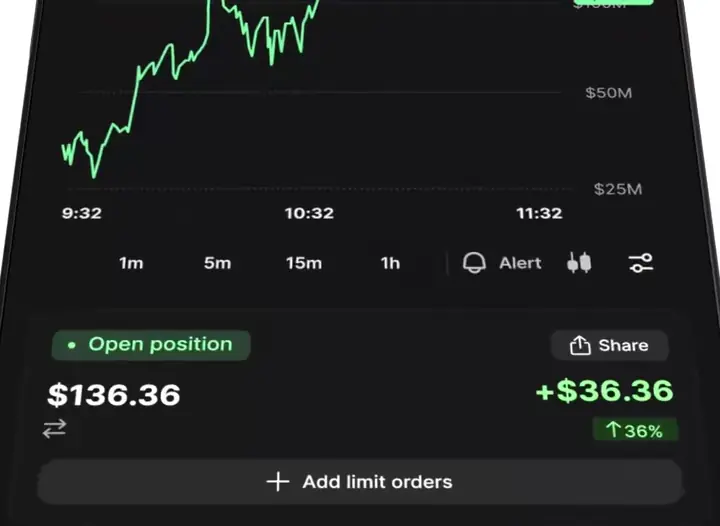
The orders screen opens with the coin's market cap at the top, a take profit section in the middle and a stop loss section below. If the button is missing, the coin's chain most likely does not have orders yet.
Step 2: Set the take profit
Pick a preset or type your own target. The presets add +50%, +100%, +200% or +500% to the current market cap, and the box shows where that lands. On a coin at $6.42M, +200% puts the target near $19.3M.
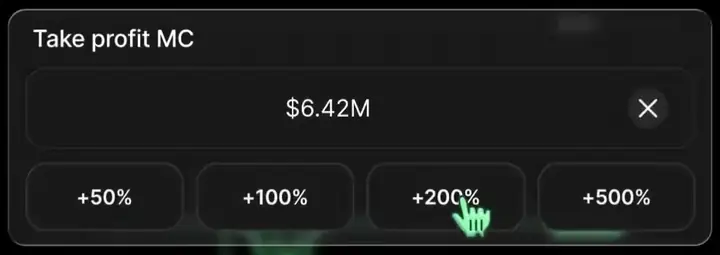
A % and MC toggle switches the box between percent and market cap. Market cap is the clearer habit, because it is the number charts and callers quote. Round targets like $10M draw a crowd of sellers, so set yours just under the round number.
Step 3: Set the stop loss
The stop loss works the same way, downward. The presets take a share off the current market cap: 10%, 25%, 50% or 75% on the screen below, with 15% in place of 10% on the newer EVM screen. A 50% stop on a coin at $9.47M puts the floor near $4.7M.
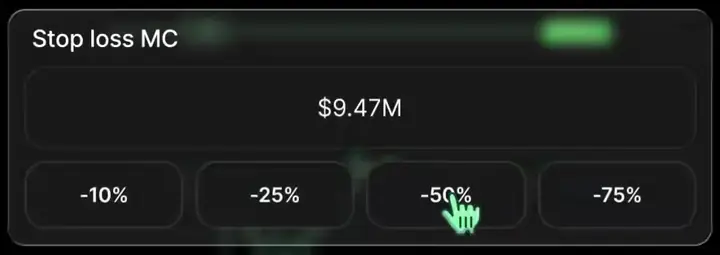
Put the floor under the last level where buyers stepped in, not at a round number everyone else picked. On a coin that swings 30% in an ordinary hour, a 10% stop sells you on noise. A wider stop on a smaller position beats a tight stop on a full one.
Step 4: Choose the exit amounts and create the orders
Each order has its own Exit amount slider. It sets how much of the position sells at that level, so you never have to sell everything at once. In the screen below, the take profit sells 100% at +200% ($381M market cap), and the stop loss sells 49% at 50% down ($63.5M).
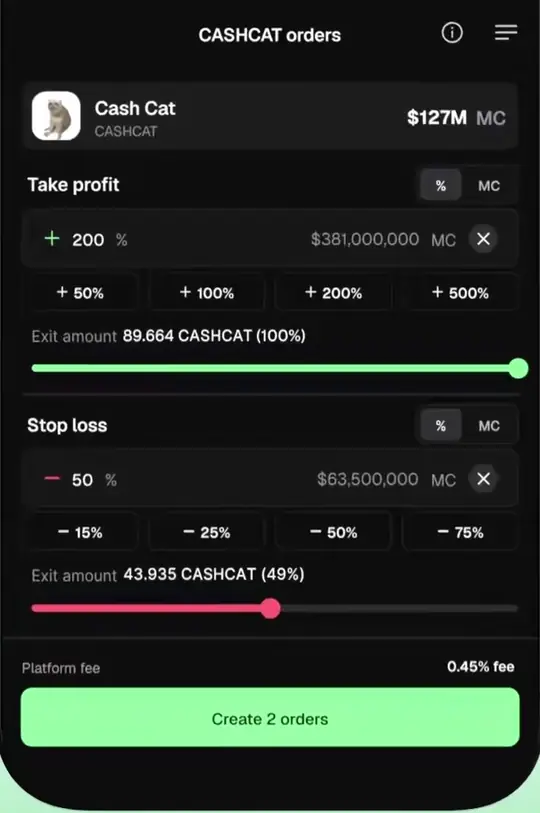
Read the Platform fee line above the button. It shows 0.45% here because this account has no referral code. Then tap Create 2 orders, or Create 1 order if you set only one side. Both levels now show on the chart as dashed lines, the take profit in green above the price and the stop loss in orange below it.
Step 5: Watch for the fill and cancel what you no longer want
When a level is hit, the order sells and you get a notification.
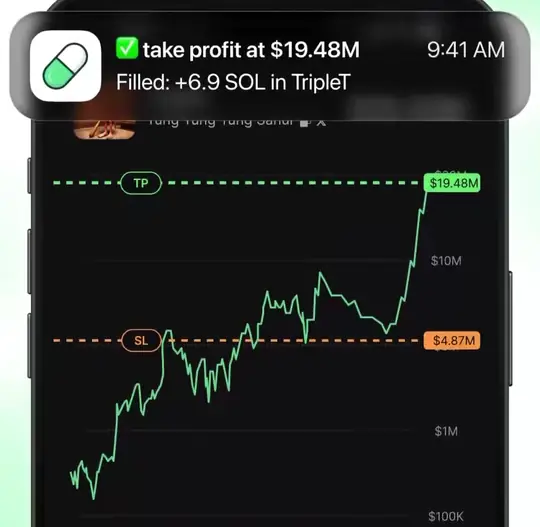
Orders stay live until they fill or you cancel them. If you sell the coin by hand, cancel its orders on the orders screen straight after. A cancel is a request like any other, so an order that is already triggering can still fill before the cancel lands.
What happens when the price gaps past your stop?
The order still sells, at the pool's next price rather than your level.
A stop loss is a trigger. Once the market cap touches your floor, the app sends a sell at whatever the pool pays at that moment. On a memecoin, one large holder selling into a thin pool can move the price far past your level in a single trade. Say your stop sits at $4.87M and the next trade prints at $3M: your order fills around $3M or lower, about 38% under your floor. It can also fill late, fill only in part, or not fill at all if the pool has nothing left to buy with. Pool and platform fees still come out of whatever it sells for.
Size for the gap. Pick a position size you could live with if it sold at half your stop price. Take some profit early, so a gap eats gains instead of your stake. And on brand-new coins with thin pools, treat a stop loss as damage control, not insurance.
What does Terminal offer instead?
Terminal, Pump.fun's pro trading platform and the former Padre, has more order types.
It has limit orders with take profit and stop loss, and EVM limit orders since April 2026. DCA orders, by time or by market cap, came in May 2026. Breakout limit orders arrived on October 1, 2026; they buy when the price rises through a level you set. Terminal does not charge the app's platform fee, and the app's referral code does not apply there. Use the app if you trade from your phone and want exits on positions you hold. Use Terminal if you want entry orders and DCA, which our Solana trading bot page walks through.
The one-minute checklist
- Buy the coin first; orders attach to an open position.
- Tap Add limit orders on the position card.
- Set the take profit as a market cap, just under a round number.
- Set the stop loss under the last real support.
- Move each Exit amount slider to the share you want sold.
- Read the Platform fee line, then tap Create orders.
- Cancel the orders as soon as you sell by hand.