On this page
Before you start
Know which chain you are trading on. Priority fees and tips only matter on Solana. On Base, BNB Chain and the other EVM chains in the app, Pump.fun pays the network gas itself out of its 0.10% to 0.15% EVM fee, so there is nothing to set. Perps orders go to Hyperliquid, which charges no gas per order.
For Solana trades, keep some SOL aside for fees, about 0.01 SOL at the very least, and more if you plan to tip. A wallet with no SOL fails every trade, however high the fee setting.
What priority fees and tips are on Solana
Both are extra SOL you pay so a validator puts your trade ahead of others. Every Solana transaction pays a base fee of 0.000005 SOL per signature. On top of that come two optional payments.
- Priority fee. A price per unit of computing work, paid to the validator that includes your trade. A higher price moves you up the queue for the next block. It is charged even if the trade lands and then fails.
- Tip. A separate payment to the validator for including your trade, often called a Jito tip or validator tip. It is what MEV protection runs on: the trade goes to the validator privately, with the tip attached, instead of sitting where bots can see it. In most cases you pay the tip only when the trade lands.
Neither one fixes a bad price. If a trade fails because the coin moved, the answer is slippage or size, not a bigger fee. Why Pump Fun transactions fail lists the other causes.
Step 1: Check what the app already does for you
The Pumpfun app sets the priority fee for you by default. Open any coin, tap the buy button, and look at the gear button at the top right. If it reads Auto, the app picks the priority fee, the tip and slippage for every trade.
Leave it there unless you have a reason to change it. Auto can adjust to network load trade by trade, which a fixed number cannot. Two reasons do justify Custom: trades keep timing out on a busy launch, or you trade large size and want MEV protection on every order.
Step 2: Set a custom priority fee and tip in the app
Tap the gear button, then Custom at the top of Transaction settings. Below the slippage row you find the two settings that decide speed.
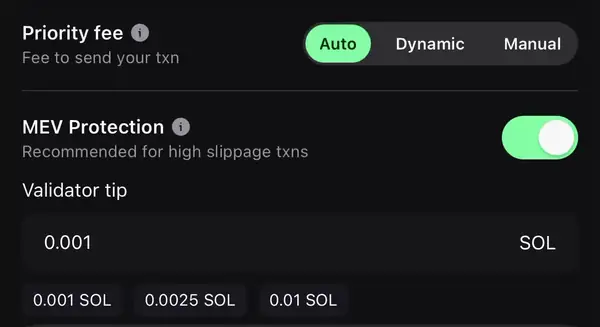
- Priority fee. Three choices: Auto, Dynamic and Manual. Auto keeps the app's choice. Manual takes a fixed amount you enter. Pump.fun has not documented how Dynamic differs from Auto, so stick to the other two. Stay on Auto unless trades keep timing out.
- MEV Protection. A switch labelled "Recommended for high slippage txns". Turn it on for any trade with slippage above about 5%.
- Validator tip. Sits under the MEV Protection switch. The presets are 0.001 SOL, 0.0025 SOL and 0.01 SOL, or you type your own. Start at 0.001 SOL.
Close the sheet with the X. The gear button now shows your slippage number instead of Auto.
Step 3: Build presets in Terminal
Terminal, Pump.fun's pro trading platform, puts these settings into presets. P1, P2 and P3 each hold a slippage, a priority fee, a tip, an MEV protection switch and an optional custom RPC, and every chain gets its own three. A separate network fees setting covers transfers and claims, not trades.
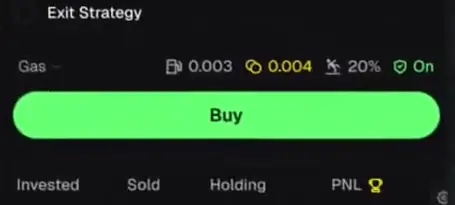
The row above the Buy button shows the active preset in one line. The pump icon is the priority fee, the coin icon is the tip, then slippage, then the shield for MEV protection. Here it reads 0.003 SOL, 0.004 SOL, 20% and On.
Two rules save trouble. MEV protection needs a tip of at least 0.001 SOL, or the order goes out unprotected. Fortify, Terminal's same-block buy across 2 to 4 wallets, also needs that 0.001 SOL tip plus at least 10% slippage. A sensible pair of presets: P1 with 0.001 SOL priority and 0.001 SOL tip for everyday trades, P2 with 0.003 and 0.003 for the first minutes of a busy launch.
Step 4: Set up quick buy
Quick buy sends a fixed amount with one click, using a preset you choose in advance. In Terminal's Trenches feed, each coin gets a quick buy button, and the column header shows the amount and the preset every button in that column uses.
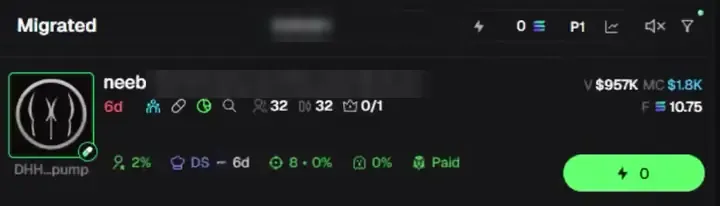
Set the amount first; at 0, the button buys nothing. Then pick the preset, and make it the fast one only if speed matters for that column. Search results and the watchlist ticker have their own quick buy amount and preset in settings, and Terminal can fire quick buy when you press the mouse button instead of when you release it.
Quick buy has a downside. One click with a fixed size makes it very easy to buy a coin you have not checked.
What fees and tips cost on small trades
They are flat amounts, so they hurt small trades most. Every buy and every sell pays them again. This table assumes a round trip, one buy and one sell, and leaves out the 1.25% pool fee on curve coins and the 0.40% to 0.45% platform fee in the app.
| Trade size | 0.001 priority + 0.001 tip | 0.001 priority + 0.01 tip |
|---|---|---|
| 0.1 SOL | 0.004 SOL, 4% | 0.022 SOL, 22% |
| 0.5 SOL | 0.004 SOL, 0.8% | 0.022 SOL, 4.4% |
| 1 SOL | 0.004 SOL, 0.4% | 0.022 SOL, 2.2% |
| 5 SOL | 0.004 SOL, 0.08% | 0.022 SOL, 0.44% |
A 0.1 SOL trade with a 0.01 SOL tip has to rise 22% just to pay for getting in and out, before any other fee. Keep the tip under about 1% of the trade. For a 0.1 SOL buy, that means 0.001 SOL or less.
Realistic amounts on a normal day: a 0.001 SOL priority fee and a 0.001 SOL tip land most trades. For the first minutes of a busy launch, 0.003 to 0.005 SOL each. Above 0.01 SOL you are bidding against professional sniper bots on servers next to the validators, and you lose most of those races anyway.
If trades are still slow or failing
Most slow or failed trades come down to one of these. Go through them in order.
- Check the SOL balance. Fees and tips come out of SOL. Near zero, every trade fails.
- Read the error. "Price moved too fast" is a slippage problem, not a fee problem. Raising the fee only makes each failure cost more.
- Timeouts on a busy launch. Raise the priority fee one step, for example from 0.001 to 0.003 SOL, and retry once. Terminal's own timeout message suggests the same: a little more slippage, priority fee or tip.
- Look before you retry. A trade that seemed stuck often lands a few seconds later. Check your positions first so you do not buy twice.
- Count what you paid. Terminal can show the priority fee and tip of each trade in the trades table, and include or exclude them from your PnL. Check that figure after a busy day.