On this page
Before you start
Every Pump Fun stream runs on a coin page, and only the coin's creator can start it. Have three things ready:
- A coin you created, on the account you will stream from. No coin yet? Creating a coin on Pump Fun has no platform fee. Keep about 0.04 SOL for network costs and a small first buy.
- A camera and a microphone. A phone is enough. For overlays, screen sharing or a better mic, use streaming software such as OBS.
- Age 18 or over. The stream rules ban anyone under 18 from streaming.
Decide one thing before you launch the coin: where its creator fee goes. A coin launched with Holder Rewards pays the creator share of every trade to its holders, for good. If streaming is how you plan to earn, launch a regular creator fee coin.
The button names below come from the current website. The app's wording can differ slightly.
Step 1: Open your coin and start the stream
In the Pumpfun app, open your coin's page and tap Start Livestream. On the website, pick Go live in the left menu.
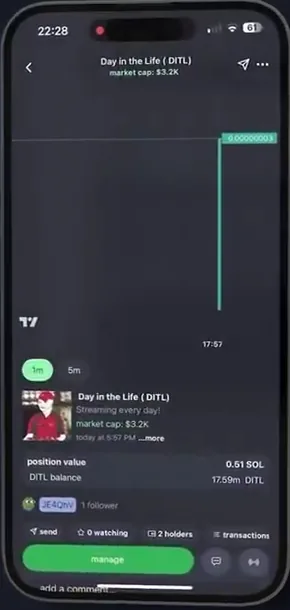
The website checks your coins first. With none, it shows Create your coin to go live. With one or more, it asks you to Select one of your coins to begin livestreaming, then shows Start livestream.
The usual mistake is looking for the button on someone else's coin, or on a coin made from another wallet. It only appears for the creator, signed in with the account that launched the coin.
Step 2: Name the stream and set the chat
A Create Livestream window asks for a title, and the field is required. Write what viewers will see, such as "Building the website live" or "Day 12 of daily streams". The title sits next to your coin on the Live page, and a vague one gets scrolled past.
The same window has a Holders only chat switch, described as "Require users to hold token, to send message in chat". Turn it on if bots flood your chat. Leave it off if you want new viewers to ask questions before they buy. Then press Go live.
Step 3: Accept the stream rules
Before your first stream, Pump.fun shows the Livestream Terms & Conditions. Read them, then tap Agree and go live.
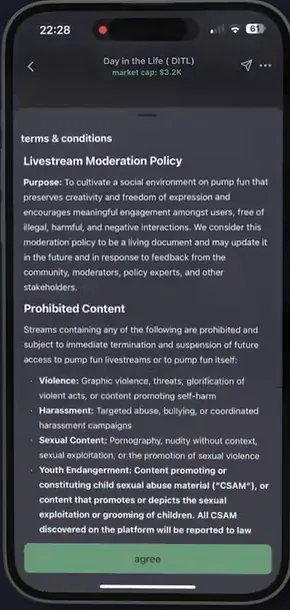
The banned list is short: graphic violence or threats, self-harm, harassment, sexual content or nudity without context, anyone under 18 on stream, illegal activity, doxxing or filming private people without consent, content you have no rights to, and terrorism. A violation can end the stream on the spot and cost you the account. If a stream is removed by mistake, appeal through Pump.fun support.
Stunts are not a plan. Pump.fun switched streams off for everyone in November 2024, after creators staged dangerous stunts to pump their coins. They came back for 5% of users on April 4, 2025 and for all users on April 11, with moderators and a written policy. The terms also forbid conduct on any stream meant to move a coin's price.
Step 4: Pick a camera, or connect OBS
For a quick stream, let the app or browser use your camera. On the web, the preview lists your camera and microphone. Pick the right ones before you go live, or you will broadcast a muted laptop.
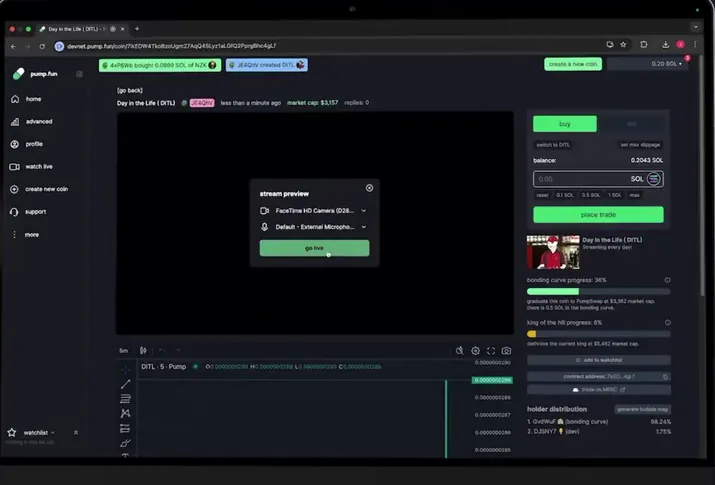
For OBS or similar software, open Stream settings (in the app, tap the stream screen to show them) and press Generate RTMP Credentials. Copy the RTMP URL and the stream key into your software. In OBS that is Settings, Stream, Service set to Custom. Then start streaming from OBS.
Treat the stream key like a password: anyone holding it can broadcast on your coin. If it leaks, press Regenerate RTMP Credentials and paste the new pair into OBS. Two more switches sit in the same panel: Show livestream chat overlay puts chat on the video, and Stream quality defaults to Auto.
Step 5: Run the stream
Once you are live, the stream sits at the top of your coin page with a LIVE badge, a viewer count and a Live chat panel. Viewers can buy and sell without leaving it.
- Chat filters. Links are blocked in chat, and so are messages with personal information, spam or toxic content. Fast posters get slowed down, and muted or banned users cannot post.
- Guests. Viewers can raise a hand, and you can invite people to join the stream. You can remove a guest from the stage at any time.
- Clips. Moments can be cut into clips. The Live page has its own Trending clips row, so a good clip keeps working after the stream ends.
In the app, do not back out of the stream screen to check a chart. Going back ends the livestream. The app asks first, but it is an easy tap to confirm by accident.
Step 6: End the stream and keep the recording
Press End livestream when you finish. The recording joins your Previous streams.
Pin the recordings you want to keep. Pinned streams are kept for good. Unpinned streams move to the trash after 30 days, and you get a short grace period to restore them before they are deleted.
How do streamers make money on Pump Fun?
Streamers earn the creator fee on their own coin's trades. There is no pay per view or per hour. The other ways the app pays are compared in how to make money on Pump Fun.
| Where your coin trades | Creator fee | On $10,000 of trading |
|---|---|---|
| Bonding curve | 0.30% | $30 |
| PumpSwap, market cap 420 to 1,470 SOL | 0.95% | $95 |
| PumpSwap, market cap 98,240 SOL and up | 0.05% | $5 |
Between the last two rows the rate steps down as the market cap grows. Fees arrive in what the coin is paired with, SOL for most coins, and you collect them from the Rewards section of your profile.
The math explains why most streams earn little. Fees follow trading volume, and volume follows attention. On Sunday, September 27, 2026, the busiest stream on the Live page had 70 viewers, and most had one or two. Alon Cohen, Pump.fun's co-founder, promised "INSTANT Creator Fees" on September 14, 2025. Instant is true; the size depends entirely on how much your coin trades.
What do viewers see?
Viewers find streams under Live in the website's menu. The page has rows for For you, Highest market cap, New creators, Popular past streams and Trending clips, and sorts by Featured, Most viewers, Top market cap or Top clips. Each card shows the coin, its market cap, the viewer count and a Trade button.
Any viewer can report a stream and pick a reason. If you watch in order to trade, remember that a streamer holding the coin has every reason to talk it up. Check the holders list and how much the creator holds before you buy.
If it does not work
- No Go live or Start Livestream button. You are on a coin you did not create, or signed in with another account. Switch to the account that launched the coin.
- "No camera track found". Allow camera and microphone access for the app or browser in your device settings, then start again.
- OBS will not connect. Copy the URL and key again with no extra spaces. If that fails, regenerate the credentials and paste the new pair.
- Your chat message will not send. Remove links and personal details. "Only token holders can chat" means the streamer turned on holders only chat.
- The stream stopped by itself. In the app, leaving the stream screen ends it. Start a new one from the coin page.
- Your stream was removed. Moderators remove streams that break the rules. If you think they got it wrong, contact Pump.fun support.